
 Logo
Logo Line drawing
 Clipart
Ask for flat colours and a plain background
“Flat vector-style, solid colours, white background, no gradients, no text” is the shortest recipe for something that traces cleanly.
Image generators give you pixels. Drop that PNG or JPG here and get a scalable SVG you can resize, recolour, cut, print or import into a 3D tool. The conversion is classic tracing in your browser — free, no account, nothing uploaded.
Drop your image here
PNG · JPG · WebP — up to 20 MB (also GIF, BMP, SVG, TIFF)
Choose imageor paste with Ctrl+V
Why vectorize
A generated picture is a raster file with a fixed size and no layers.
Whatever tool produced it, an AI-generated image arrives as a bitmap — usually a PNG or JPG around 1024 to 2048 pixels on the long side. That is fine for a social post. It is not fine for a vinyl cutter, a laser engraver, an embroidery digitiser, a T-shirt printer, a favicon, a 3D-printed keychain or a banner, because all of them want shapes, not dots: closed outlines they can cut, fill, extrude or scale to any size without going soft.
Converting the image to SVG turns the dots into outlines. A flat sticker design becomes a handful of editable paths; a logo concept becomes a file a designer can refine; a silhouette becomes something a slicer or CAD programme can extrude. Because SVG has no resolution, the same file works as a small icon and as a poster, and it is usually a fraction of the size of the PNG.
One thing to be clear about: AnyToSVG does not use AI. It is a classical tracer — colour analysis, gradient detection and Potrace, all running in your browser. That has two practical consequences. It never invents or “improves” details, so what you see in the preview is exactly what is in your image. And it cannot repair mistakes in the picture: a warped letter or an extra finger is faithfully traced as drawn, so fix those in the generator (or in a vector editor afterwards).
What traces well
The tracer reads boundaries between regions of colour. Give it clear ones.
Converts almost perfectly: flat illustration, sticker designs, icons, logos and monograms, mascots with solid colours, silhouettes, line art, simple patterns and badges — anything with a limited palette and clear edges. Typical result: 3 to 10 colours, a few dozen shapes, tens of kilobytes. Smooth shading such as a soft glow or a gradient background is detected before the colours are counted and written as a real SVG gradient, so it stays one smooth shape rather than turning into bands.
Converts approximately: richly shaded illustration, painterly styles and anything with texture or grain. These become a stylised poster: up to 32 flat colours plus gradients where the shading is smooth. That can look striking — it is how pop-art and screen-print separations are made — but it is a different picture from the original, not a faithful copy.
Converts poorly: photorealistic images, heavy film grain, busy backgrounds with a hundred soft shapes, and anything with fine hair or fur. Generated text deserves a special warning: image generators often produce letters that look right at a glance and wrong up close. A tracer will keep the wrong letters. If the design needs words, delete them from the trace and retype them in your vector editor with a real font.
The same logic holds for hand-drawn art, scans and photographs; the raster vs. vector guide shows what to expect from each kind of image before you start.
Prompting for vectors
Thirty seconds of prompt wording saves ten minutes of clean-up.
You cannot make a generator output a true vector by asking for one, but you can make it output an image that traces like one. Ideas that work with most generators:
Generate a few variations and pick the one with the cleanest edges rather than the busiest detail. Trace quality tracks edge quality.
Settings and clean-up
AI images carry quiet noise in flat areas. A couple of controls handle it.
Where the SVG goes next. Cricut, Silhouette and laser software import it directly. Tinkercad, Fusion and Blender can import SVG outlines and extrude them into solids — keep these to single-colour silhouettes with few, closed shapes for the best result. Illustrator, Inkscape, Affinity and Figma open it for edits, and a PNG rendered at 2× or 4× from the vector is available if a platform still wants a bitmap.
Rights. Vectorizing does not change who may use an image. Check the terms of the generator you used and avoid tracing artwork or logos that belong to somebody else; AI output that resembles an existing trademark is a risk whether it is a PNG or an SVG.
How it works
Three steps, and the second one is optional. No palette wizard, no model selection, no credit counter.
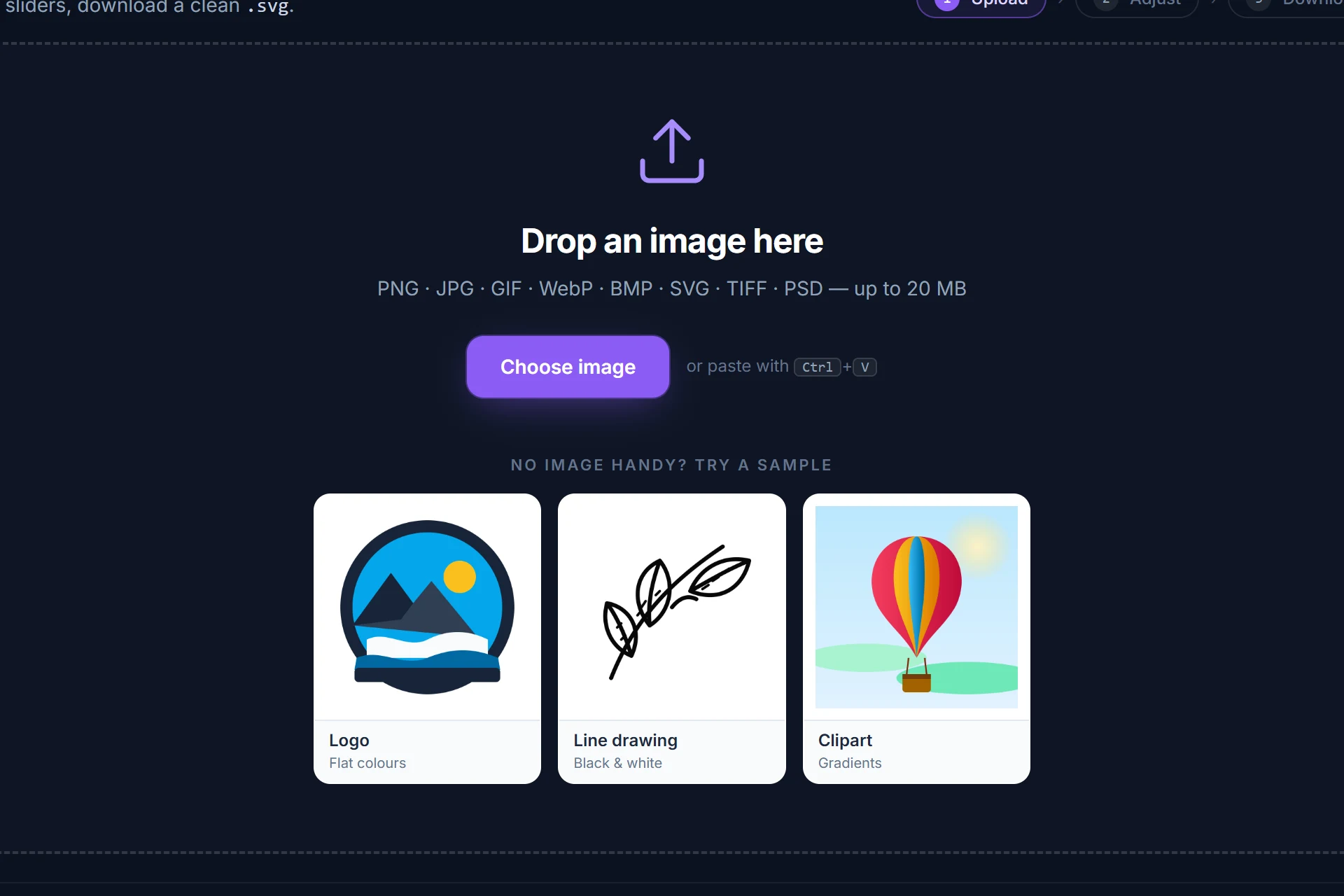
Drag it onto the page, pick it from disk or paste it with Ctrl+V. It is analysed and traced immediately — colour or black-and-white, colour count and threshold are detected for you.
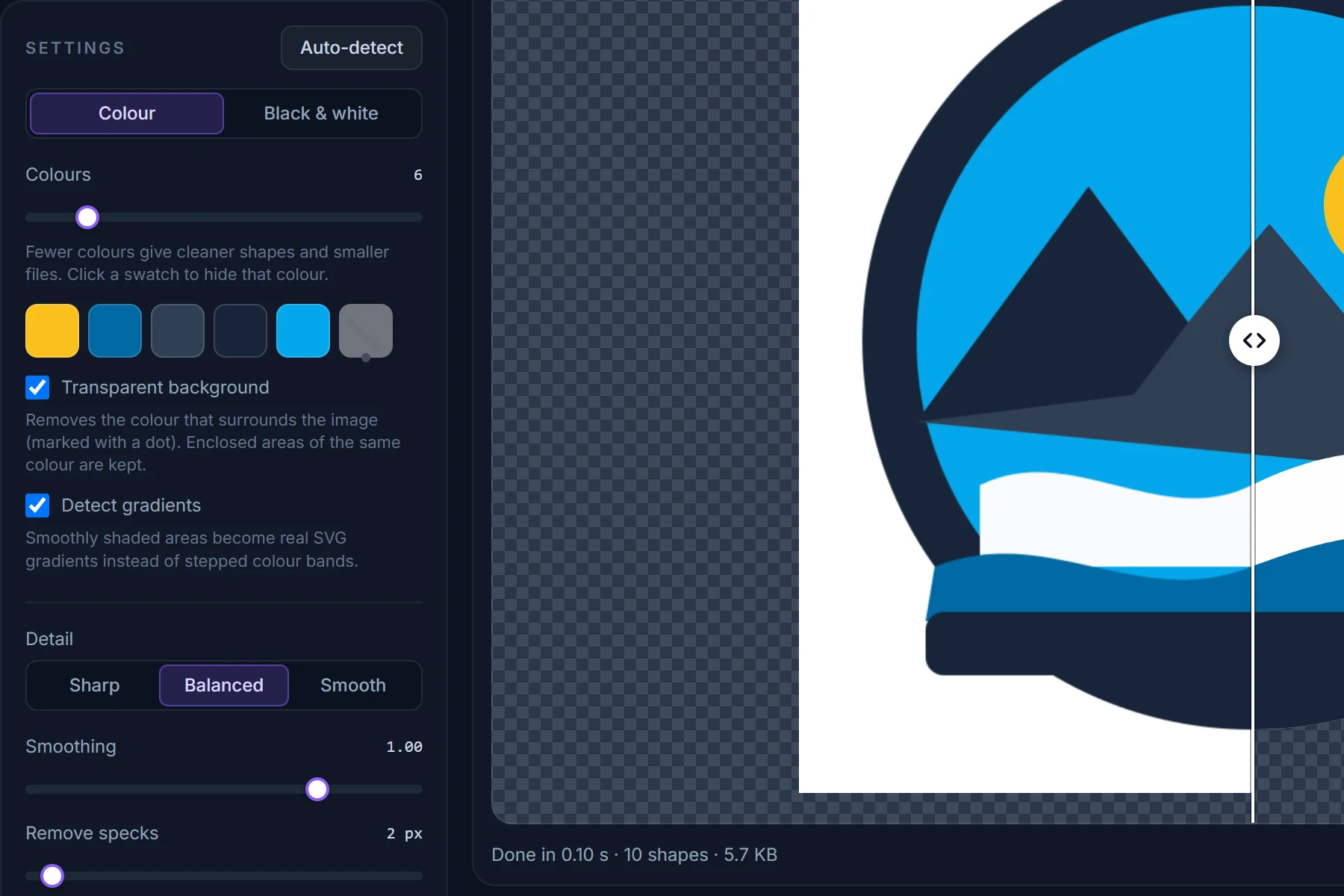
Drag the divider between original and SVG, zoom into an edge. Change the number of colours, hide a colour, make the background transparent; every change re-traces in a fraction of a second.
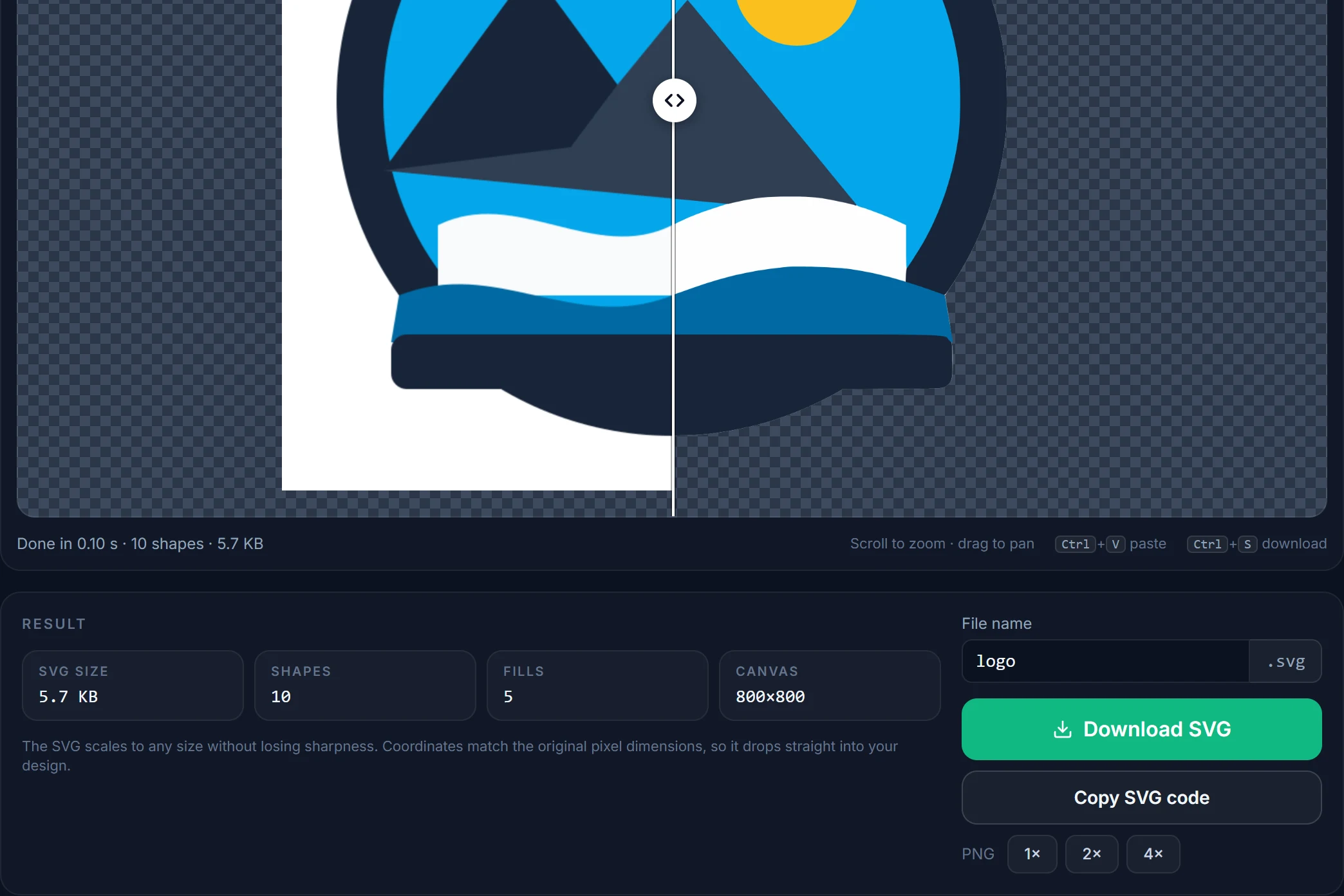
Save the SVG, copy its code, or render a PNG at 2× or 4×. Coordinates match the original pixels, one path per fill, nothing else in the file.
Tips
“Flat vector-style, solid colours, white background, no gradients, no text” is the shortest recipe for something that traces cleanly.
After dropping the image, lower the Colours slider until each swatch is a colour you meant. Near-duplicates are grain, not design.
Letters from image generators are often subtly wrong. Delete them from the trace and set the words in a real font in your vector editor.
Choose the highest resolution the generator offers, saved as PNG. Images above 2048 px are downsampled before tracing, which costs nothing.
Black & white mode gives a single path on a transparent background — a good starting point for extruding, engraving and stencils.
Drag the divider in Compare view and zoom to 400 %. Shapes that wobble or merge there will do so in the cut, the print and the extrusion.
Questions
Short answers here; the full FAQ covers formats, quality settings, photos and privacy.
Save the image as PNG (or JPG), drop it on this page or into the converter, adjust the colour count and the transparent background if needed, and click Download SVG. The whole process runs in your browser in a second or two, with no account and no watermark.
No. It is a classical tracer: it analyses colours and smooth gradients, then hands one mask per colour to Potrace, which fits curves to the outlines. Nothing is generated or invented, which is why the result matches the image you gave it.
Flat illustrations, stickers, icons, logos, silhouettes and line art with a limited palette and clear edges. Photorealistic or heavily textured images become stylised posters rather than faithful copies.
Yes — the converter does not care where the pixels came from. Any PNG, JPG or WebP those tools give you (including images made with Gemini’s Nano Banana model) can be dropped in. Results depend on the style of the image, not the tool.
Usually grain or soft texture in areas that look flat. Lower the colour count, tick Smooth noise first, raise Remove specks, or regenerate with a prompt asking for solid colours and no texture.
Yes. Tick Transparent background and the colour around the artwork is removed from the SVG while enclosed areas of the same colour are kept. If the generator can export a transparent PNG, that works without any step.
That depends on the terms of the image generator and on what the picture depicts, not on the file format. Vectorizing does not transfer or create rights.
No. PNG, JPG, GIF, WebP, BMP and SVG files are decoded and traced entirely inside your browser. See the privacy policy.
More converters
Same engine, same privacy — one page per input format so you can bookmark the one you need.
Free, in your browser, nothing to install and nothing uploaded. The SVG is next to your original in about a second.