
 Logo
Logo Line drawing
 Clipart
Find the biggest version first
Right-click the logo on a website and choose Open image in new tab: the file behind the page is often several times larger than what is shown. A 1000-px PNG traces noticeably better than a 200-px one.
Drop a logo and get a scalable SVG vector in about a second: crisp at favicon size and at billboard size, transparent background in one tick, colours detected for you. It runs in your browser — free, no account, nothing uploaded.
Drop your image here
PNG · JPG · GIF · WebP · BMP · SVG — up to 20 MB
Choose imageor paste with Ctrl+V
Why logos trace well
Flat colours, hard edges and few of them: the easiest case there is.
Somebody once drew your logo as shapes: a circle here, a letter there, three flat colours. Then it was exported to a PNG or JPG for a website, a slide or an email signature, and the shapes were flattened into pixels. Converting a logo to SVG is the reverse trip — finding those shapes again. Because a logo has a handful of flat colours and sharp boundaries, a tracer can recover them almost exactly: the usual result is 2 to 8 colours, a few kilobytes and one editable path per colour, and at any size the SVG is indistinguishable from the original artwork.
That is also why one SVG replaces a whole folder of files. The 16-pixel favicon, the 512-pixel app icon, the header logo, the printed letterhead and the trade-show banner can all come from the same vector. There is nothing to export at 1×, 2× and 3× any more, and nothing goes soft when a customer zooms in or a screen has a high pixel density.
AnyToSVG treats logos as its main use case. When you open one it decides on its own whether the artwork is colour or black-and-white, how many colours it really contains, and whether it has a background to remove. Smoothly shaded parts — a glossy badge, a gradient swoosh, a soft glow behind an icon — are detected before the colours are counted and written as real <linearGradient> or <radialGradient> fills, so a gradient logo stays one smooth shape instead of breaking into stepped bands.
Settings that matter
Auto-detect gets the first pass right. These are the controls worth knowing.
Every change re-traces in a fraction of a second, so the quickest way to learn the controls is to drag one and watch the preview. The step-by-step logo guide goes through each of them with screenshots.
Where the SVG goes
One vector file, every output. Know the three or four places it behaves differently.
Websites and apps. Use the SVG in an <img> tag, as a CSS background, or inline in the HTML to recolour it with CSS. Browsers also accept SVG as a favicon (<link rel="icon" type="image/svg+xml" href="/logo.svg">); keep a PNG or ICO fallback for older browsers. The file is plain — a viewBox in the original pixel size and one <path> per colour — so it is usually smaller than the PNG it came from. Many email clients, on the other hand, still do not display SVG, so keep a PNG for signatures: the PNG 2× and 4× buttons render one from the vector, sharper than the file you started with.
Print and signage. Send the SVG to the printer, or open it in Inkscape, Illustrator or Affinity Designer and save as PDF or EPS, which are vector-to-vector conversions and lose nothing. Check the colours: the fills are sRGB hex values, so a brand that is specified in Pantone or CMYK needs its swatches matched by hand in the editor. For an exact brand colour, change the single fill attribute per colour — the file is easy to edit.
Cricut, Silhouette and vinyl cutters. Tick Transparent background, turn Detect gradients off and set Layers to Cut out under Advanced, so every colour is exactly its own closed shape and the blade does not cut the same edge twice. Each colour arrives in Design Space or Studio as a separate layer; keep the colour count low and raise Remove specks to avoid islands too small to weed. The PNG to SVG page has the full cutting checklist.
Laser engraving and CNC. Black & white mode gives a single path with a transparent background, ideal for engraving. For CAD or CNC programmes that want DXF, open the SVG in Inkscape and use Save as.
Tracing or redrawing
Both trace; they differ in price, setup and how many knobs you get.
If you already pay for Adobe Illustrator, Image Trace is a fine tool: it offers presets, an adjustable threshold, path and corner sliders, an “ignore white” option and results you can expand into editable paths, all inside the app where you will keep working. If you have Inkscape, Trace Bitmap is the free desktop equivalent, and it is built on the same tracer (Potrace) that AnyToSVG uses.
AnyToSVG is for the other situations: you do not own Illustrator, you are on a phone or a borrowed computer, or you just need a clean SVG in under a minute without installing anything. It picks colour or black-and-white, the colour count and the threshold for you, detects gradients before it counts colours, removes anti-aliasing halos so you do not get thin lines between neighbouring shapes, and keeps everything in the browser, so a client’s unreleased logo never leaves your machine. The output is a plain SVG that opens in Illustrator, Inkscape, Figma, Affinity and Canva like any other, so you can still polish it there.
Whichever you use, remember what tracing is: a faithful copy of what is in the pixels. A logo that is blurry, tiny or photographed off a shop sign will trace into a blurry, tiny or skewed vector. For those, use the trace as a template and redraw over it, or ask the designer for the original .ai, .eps, .pdf or .svg. And only vectorize logos you own or are licensed to use: converting a file does not change who holds the rights to the design.
How it works
Three steps, and the second one is optional. No palette wizard, no model selection, no credit counter.
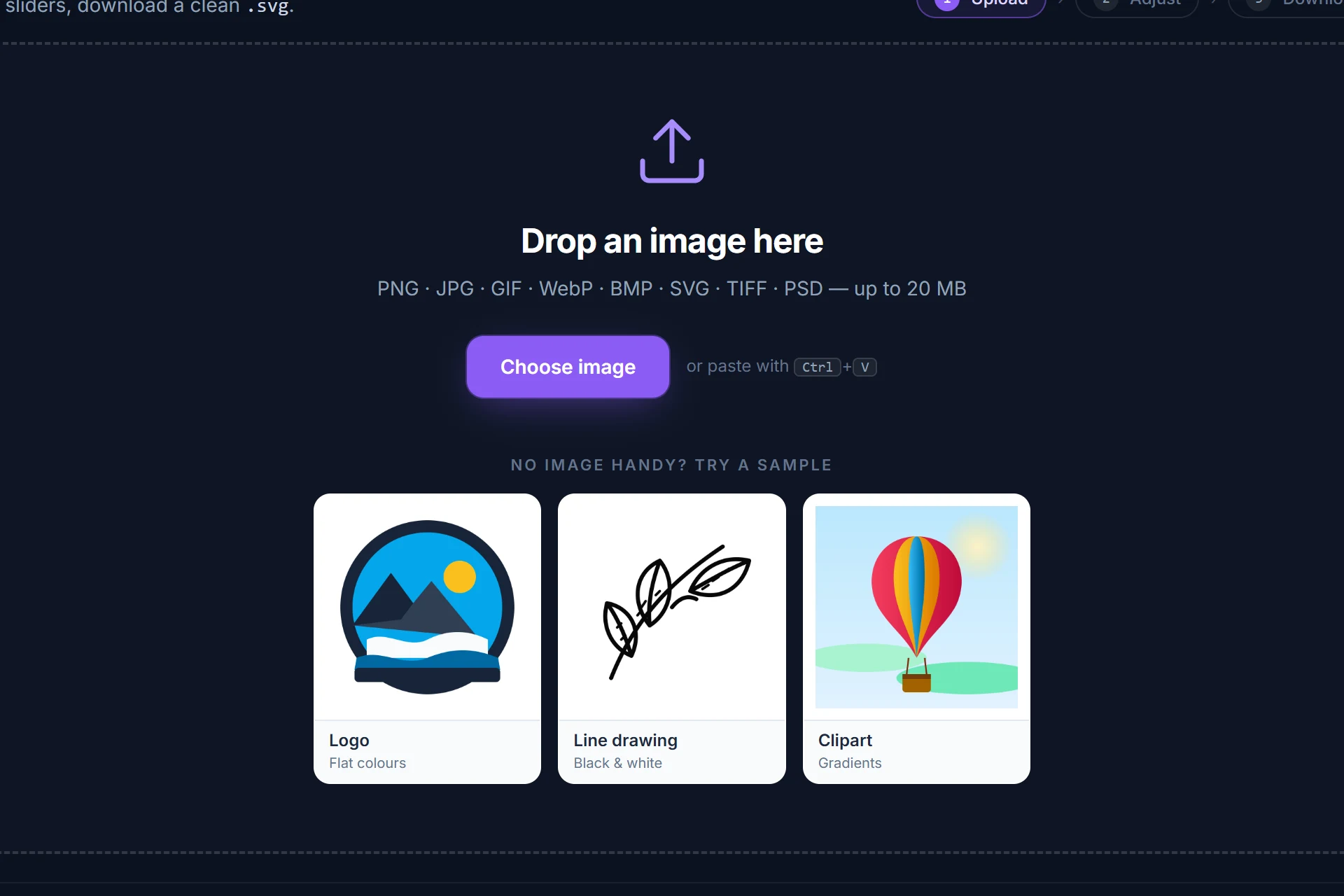
Drag it onto the page, pick it from disk or paste it with Ctrl+V. It is analysed and traced immediately — colour or black-and-white, colour count and threshold are detected for you.
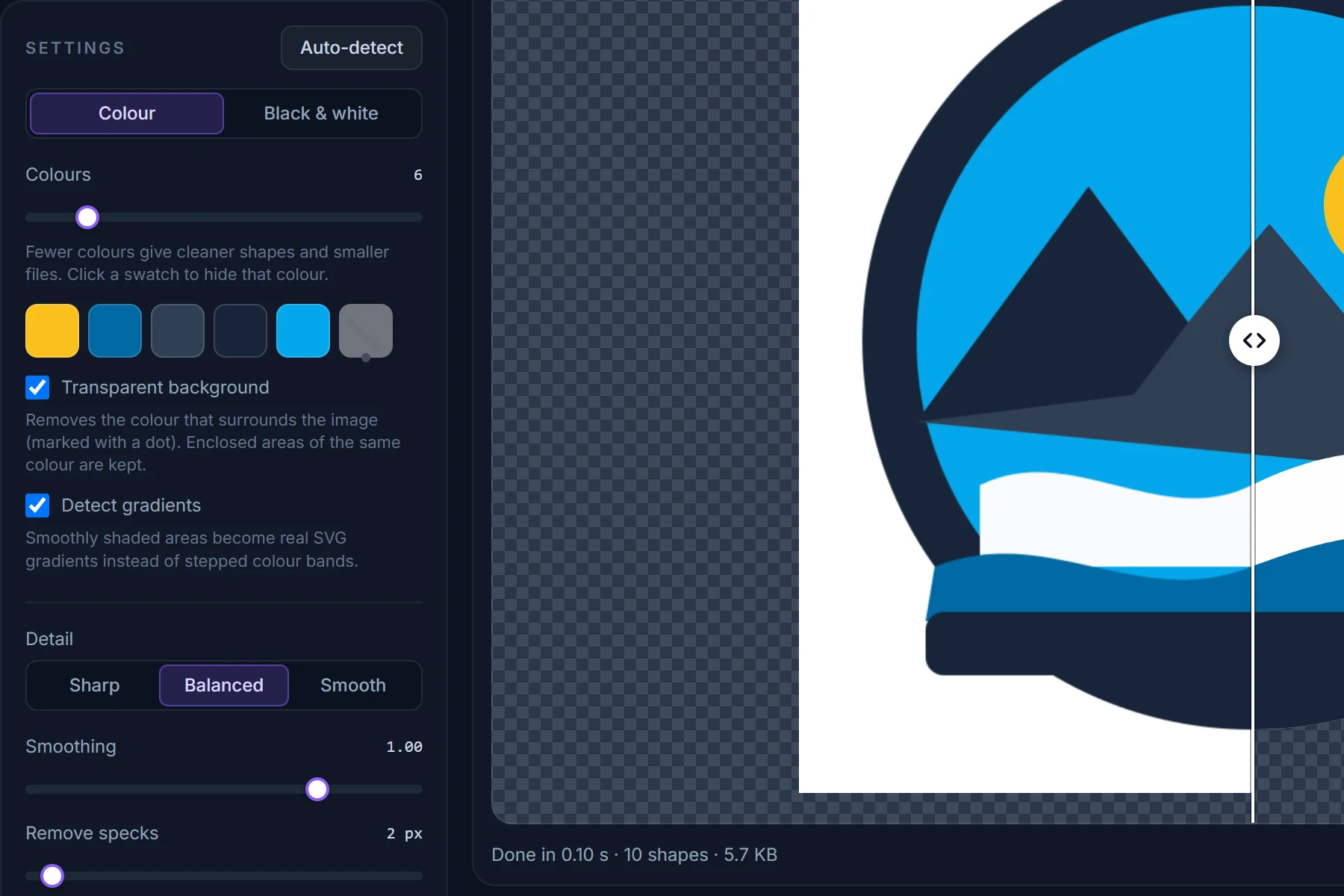
Drag the divider between original and SVG, zoom into an edge. Change the number of colours, hide a colour, make the background transparent; every change re-traces in a fraction of a second.
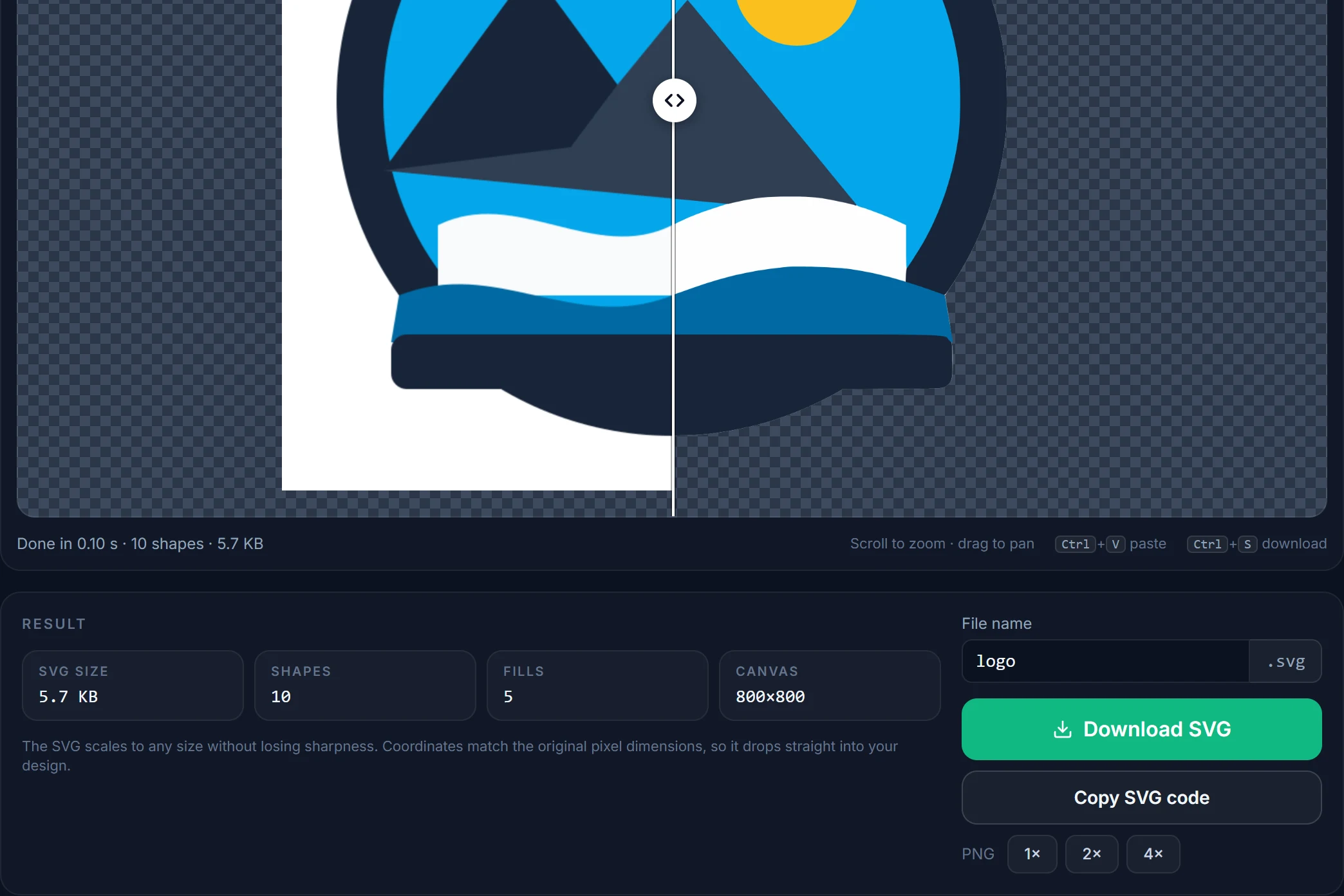
Save the SVG, copy its code, or render a PNG at 2× or 4×. Coordinates match the original pixels, one path per fill, nothing else in the file.
Tips
Right-click the logo on a website and choose Open image in new tab: the file behind the page is often several times larger than what is shown. A 1000-px PNG traces noticeably better than a 200-px one.
PNG keeps edges exactly as drawn. A JPG logo works too — the noise filter runs automatically — but expect a little more tidying than with a PNG.
AnyToSVG traces up to 2048 px and upscales small images with a filter chosen for tracing. An extra resample in an image editor only adds blur.
Click a swatch to hide that colour: a stray drop shadow or a coloured backdrop disappears from the SVG without re-drawing anything.
Small lettering traces into good shapes but not into a font. If the logo has a slogan you must edit, retype it in your editor with the trace as a guide.
Scroll to zoom in the preview and drag the divider across the whole logo. What you see is exactly what the SVG contains.
Questions
Short answers here; the full FAQ covers formats, quality settings, photos and privacy.
Drop the PNG or JPG logo on this page or open the converter and choose the file. It is traced in your browser in about a second; tick Transparent background if it sits on a white box, check the swatch row, and click Download SVG. There is no account, no credit system and no watermark.
Yes. “Logo to SVG”, “logo to vector” and “vectorize a logo” all mean the same thing: rebuilding the shapes of the logo as curves instead of pixels. The result is an SVG, which every vector editor, browser and cutting machine can open.
For flat-colour logos with clear edges it is practically identical, and sharper than the PNG when enlarged. Soft shadows, blurry sources and very small images trace less perfectly; the Compare view shows the difference before you download.
Yes. A PNG that is already transparent keeps its transparency. If the logo sits on a solid colour, tick Transparent background; the surrounding colour is removed while enclosed areas of the same colour, like the counter of a letter, are kept.
The converter produces SVG (and a PNG rendered from it). Open the SVG in Inkscape, Illustrator or Affinity Designer and save as PDF, EPS or AI; those are vector-to-vector conversions and lose nothing.
It depends on what you have. Image Trace gives more manual control inside Illustrator. AnyToSVG is free, needs no installation, picks the settings for you and handles gradients as real SVG gradients. Both work best on clean, flat logos.
No. PNG, JPG, GIF, WebP, BMP and SVG files are decoded and traced entirely inside your browser. Only formats browsers cannot open (TIFF, PSD, HEIC, PDF) pass through the server, in memory, and are discarded at once. See the privacy policy.
Technically yes, legally only if you own it or have permission. Trademark and copyright stay with the owner regardless of file format.
More converters
Same engine, same privacy — one page per input format so you can bookmark the one you need.
Free, in your browser, nothing to install and nothing uploaded. The SVG is next to your original in about a second.