
 Logo
Logo Line drawing
 Clipart
Find the largest JPG you can
JPEG artefacts are a fixed size in pixels (8×8 blocks), so the bigger the image, the smaller they are relative to the shapes. Above 800 px they hardly matter for a logo.
Drop a JPG or JPEG and get a scalable SVG in about a second. JPEG artefacts are smoothed away before the trace, the white background can be dropped with one tick, and your photo never leaves your computer.
Drop your image here
JPG / JPEG · also PNG, GIF, WebP, BMP, HEIC — up to 20 MB
Choose imageor paste with Ctrl+V
What is different about JPG
Blocks, ringing and colour drift are removed before the tracer sees the image.
A JPG is a lossy format: to make the file small, the encoder throws away detail in 8×8-pixel blocks and leaves faint "ringing" halos next to every sharp edge. On a photo you never notice. On a logo or a line drawing, a tracer notices everything — the halos become tiny specks, the blocks become bumpy edges, and a two-colour design suddenly seems to have twenty colours.
AnyToSVG deals with this in three places. Smooth noise first (under Advanced) runs a median filter followed by a light blur, which removes ringing that a blur alone cannot. The colour palette is built from the peaks of the colour distribution with a minimum distance between entries, so the dozens of in-between shades that JPEG creates around an edge collapse back into the two real colours on either side. And Remove specks merges any leftover islands into the colour that surrounds them before the paths are computed, so nothing is dropped and nothing leaves a hole.
The result for a decent-sized JPG logo is the same as for a PNG: a handful of colours, one editable <path> per colour, real gradients for shaded areas, and a file of a few kilobytes that scales to any size.
Backgrounds
The white (or any) background becomes see-through with one checkbox.
Unlike PNG, a JPG cannot store transparent pixels, so a logo saved as JPG always comes with a solid background — usually white. Tick Transparent background and the colour that touches the image border is removed from the SVG. Only the outer region goes: a white area enclosed inside the artwork (the counter of a letter, the whites of an eye) stays exactly where it is. Any other colour can be hidden by clicking its swatch, and the swatch marked with a dot is the one the converter identified as the background.
Because JPEG smears the boundary between the artwork and the background, zoom into an edge in the preview (scroll to zoom, drag the divider) after removing the background. If a faint rim of off-white remains, lower the colour count by one or raise Remove specks; the built-in anti-halo pass usually catches it on its own.
Photos
A poster, a stencil, an illustration — not a sharper photo.
Most JPGs are photographs, and "JPG to SVG" is often searched by people hoping to enlarge a photo without blur. A tracer cannot do that: it reduces the image to a limited number of fills. Skin becomes a few gradients and bands, hair becomes a silhouette, texture disappears. With Detect gradients on, smoothly lit areas (a sky, a cheek, a curved surface) become real SVG gradients instead of stepped bands, which makes the result far more pleasant than the classic posterised look — but it is still a stylised illustration.
That said, photo-to-SVG has real uses: stencils and screen-print separations (set the colour count to 3–6), pop-art portraits, laser-engraving artwork, and simplified silhouettes for cutting machines. For an upscaled photo you want an AI upscaler, not a vectorizer; the raster vs. vector guide explains the difference with examples.
Photos from an iPhone are often HEIC rather than JPG. Those are accepted too: because browsers cannot decode HEIC, the file is converted to PNG on our server in memory, discarded immediately, and then traced in your browser like any other image.
How it works
Three steps, and the second one is optional. No palette wizard, no model selection, no credit counter.
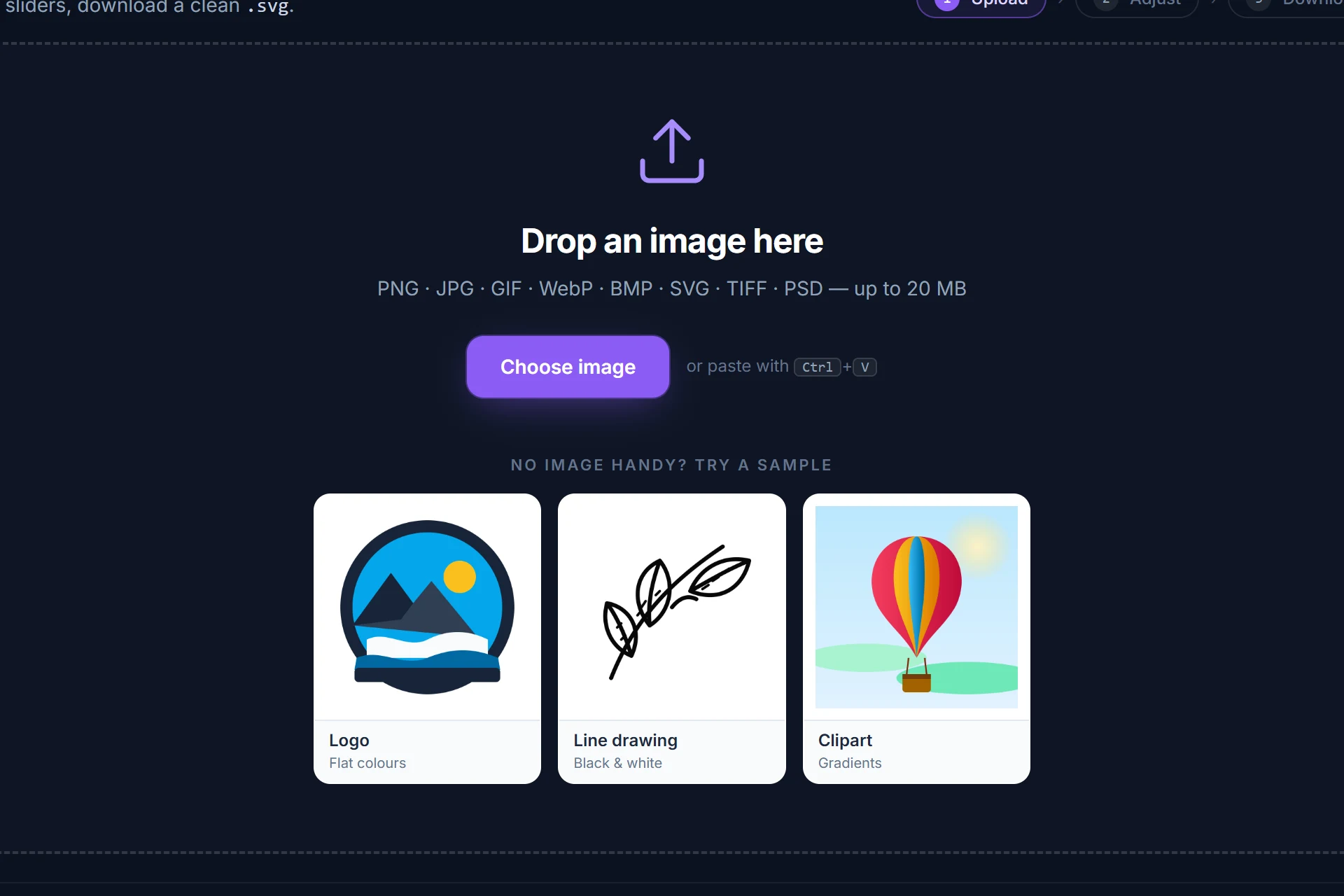
Drag it onto the page, pick it from disk or paste it with Ctrl+V. It is analysed and traced immediately — colour or black-and-white, colour count and threshold are detected for you.
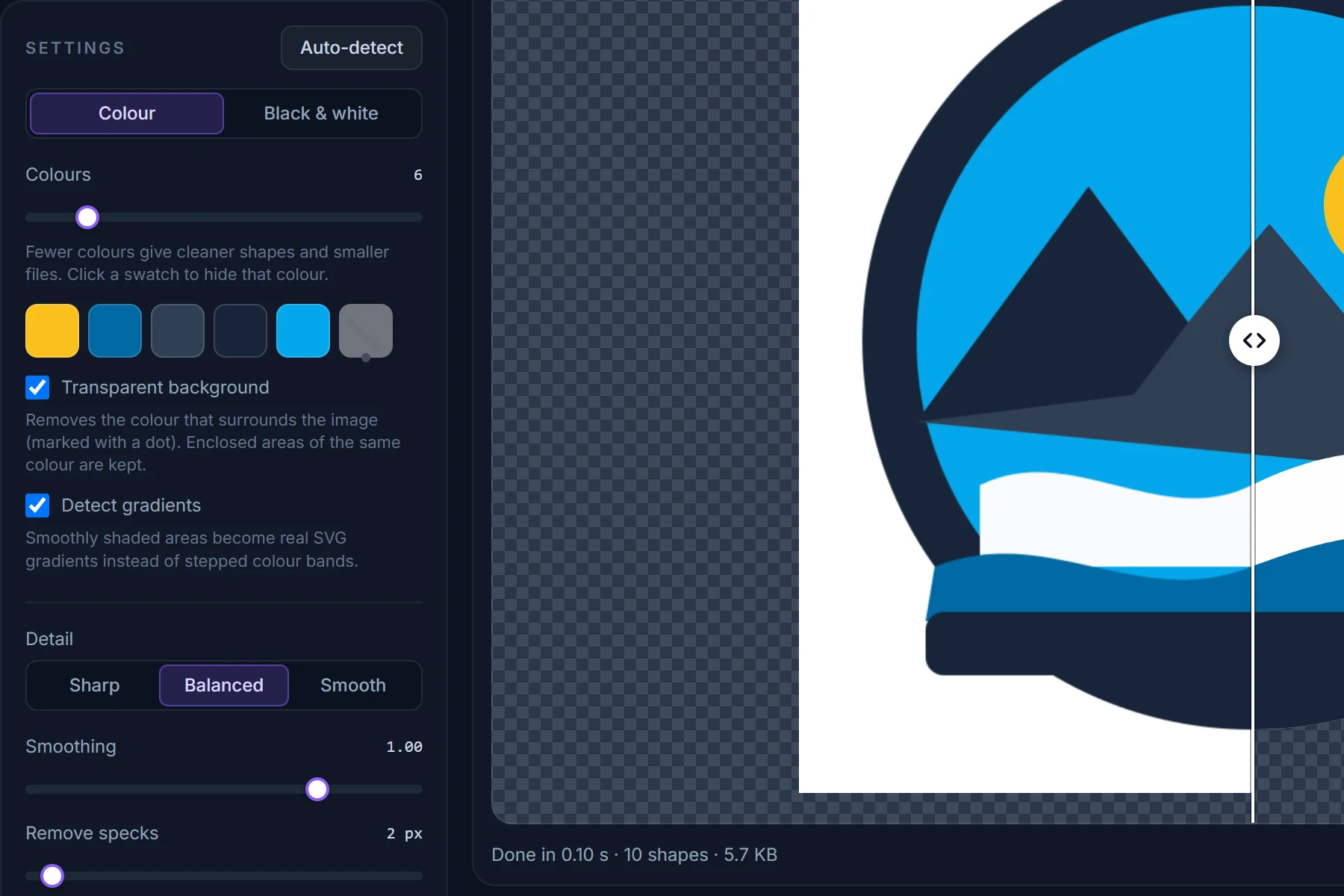
Drag the divider between original and SVG, zoom into an edge. Change the number of colours, hide a colour, make the background transparent; every change re-traces in a fraction of a second.
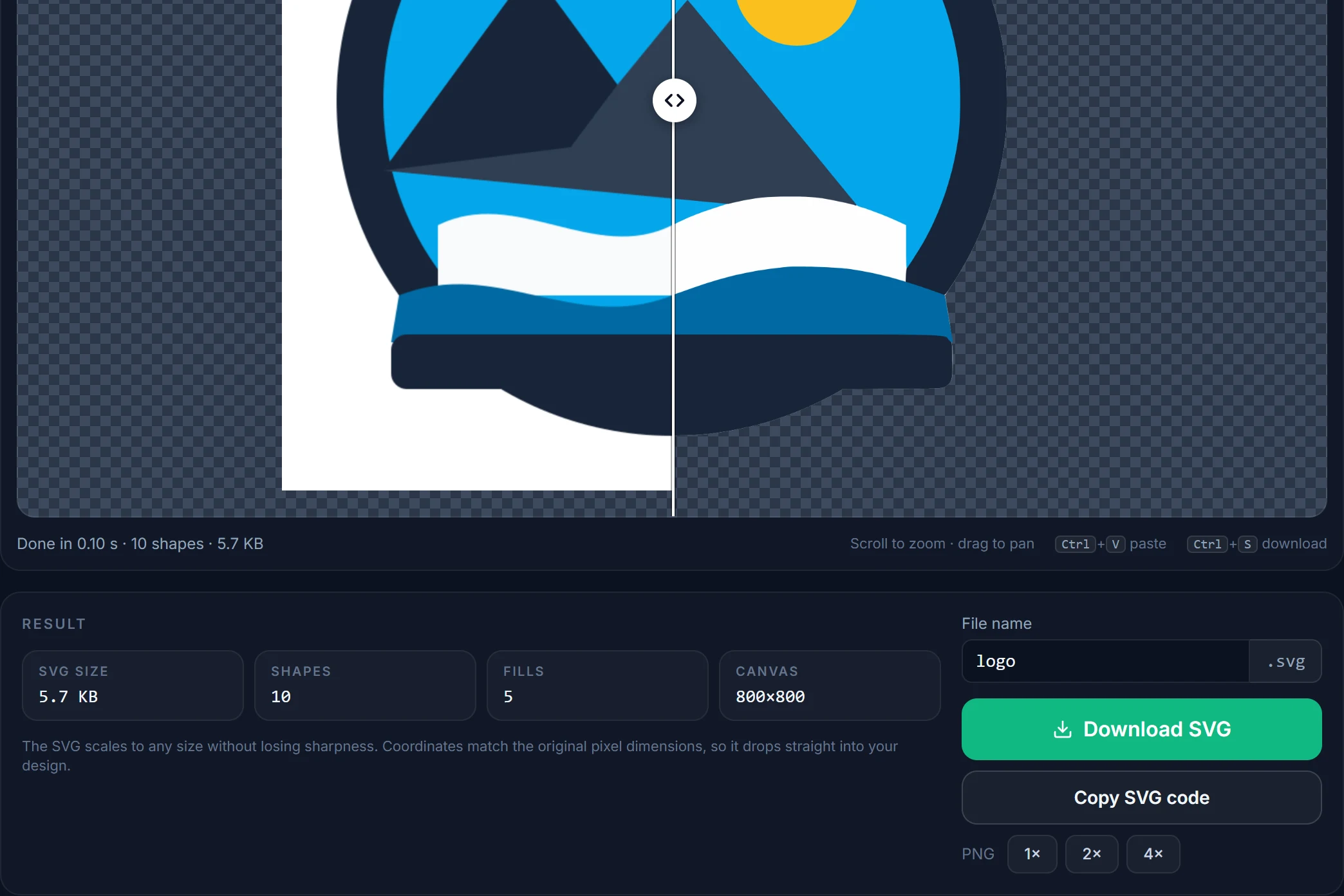
Save the SVG, copy its code, or render a PNG at 2× or 4×. Coordinates match the original pixels, one path per fill, nothing else in the file.
Tips
JPEG artefacts are a fixed size in pixels (8×8 blocks), so the bigger the image, the smaller they are relative to the shapes. Above 800 px they hardly matter for a logo.
Under Advanced. It removes JPEG ringing before the trace and is remembered for your next image; if the edges of a clean JPG look too soft, turn it off and compare.
JPEG invents shades that were never in the design. If auto-detect picked 6 colours for a 3-colour logo, set it to 3 and the invented ones merge back.
The slider is in source pixels. 4–8 px removes the dust JPEG leaves around edges without touching real detail.
A scanned drawing or signature saved as JPG traces best in B&W mode; move the threshold until thin lines are solid but the paper texture is gone.
If the original artwork exists as PNG, SVG, PDF or AI, use that instead — a JPG is always a degraded copy. See the PNG to SVG page.
Questions
Short answers here; the full FAQ covers formats, quality settings, photos and privacy.
Drop the JPG on this page or open the converter and choose the file. It is analysed and traced in your browser within a second; check the preview, tick Transparent background if you want the white removed, and click Download SVG. No account, no credits, no watermark.
No. JPEG is the format (Joint Photographic Experts Group); .jpg is simply the three-letter file extension that older Windows systems required. Both are accepted and handled identically.
JPEG compression creates intermediate shades around every edge. The converter collapses most of them automatically; if a few remain, lower the colour count to the number the design actually uses, or tick Smooth noise first under Advanced.
Yes. Tick Transparent background and the colour touching the image border is removed from the SVG while enclosed areas of the same colour inside the artwork are kept. You can also hide any other colour by clicking its swatch.
No. JPG, PNG, GIF, WebP and BMP files are decoded and traced entirely inside your browser; nothing is sent to a server. Only HEIC, TIFF, PSD and PDF — formats browsers cannot open — are converted to PNG on our server in memory and discarded at once. See the privacy policy.
Yes, with the caveat that the result is posterised: up to 32 flat colours plus gradients for smoothly shaded areas. It is great for stencils, screen printing and illustration styles; it does not make a photo sharper.
The converter produces SVG (and PNG rendered from it). Open the SVG in Inkscape, Illustrator or Affinity Designer and save as EPS, PDF or AI — every vector editor and print shop does this in one step.
More converters
Same engine, same privacy — one page per input format so you can bookmark the one you need.
Free, in your browser, nothing to install and nothing uploaded. The SVG is next to your original in about a second.