
 Logo
Logo Line drawing
 Clipart
No PNG detour needed
Drop the .webp straight in. Converting to PNG first gains nothing and, for lossy WebP, re-encodes the artefacts.
Drop a WebP and get a clean, scalable SVG in about a second — no need to convert it to PNG first. Transparency is preserved, colours are detected automatically, and the file never leaves your browser.
Drop your image here
WebP · also PNG, JPG, GIF, BMP, AVIF — up to 20 MB
Choose imageor paste with Ctrl+V
Why WebP needs its own page
Browsers decode WebP natively, so the tracer reads it directly.
WebP is the format most websites now serve images in: it is 25–35 % smaller than JPEG at the same quality and, unlike JPEG, supports transparency and lossless compression. The catch is that many desktop tools and older vectorizers still do not open it, so people end up converting WebP to PNG, then PNG to SVG, losing time and sometimes quality along the way.
AnyToSVG uses the browser's own decoder, and every current browser (Chrome, Edge, Firefox, Safari 14+) opens WebP natively. The file is decoded on your machine, analysed for colours and gradients, and traced with Potrace compiled to WebAssembly — the same pipeline as for PNG. If the WebP is lossless, the result is as clean as from a PNG. If it is lossy, the compression artefacts are milder than JPEG's but still present; tick Smooth noise first under Advanced if edges look bumpy at high zoom.
Animated WebP is accepted: the first frame is traced. AVIF, the other modern web format, works the same way in browsers that decode it (Chrome, Firefox, Safari 16+).
Transparency
The alpha channel is honoured; solid backgrounds can be removed with one tick.
WebP stores an alpha channel just like PNG. Pixels with less than 50 % opacity are treated as empty and not traced, so a logo or product cut-out downloaded from a website arrives in the SVG with the same see-through background. If the WebP was flattened onto a solid colour, tick Transparent background: the colour touching the image border is removed while enclosed areas of the same colour inside the artwork are kept.
The rest of the output is identical to every other input format: one <path> per colour, real SVG gradients for shaded areas, a viewBox in the original pixel size, and nothing else in the file. It opens in Illustrator, Inkscape, Figma, Cricut Design Space and any browser.
Typical sources
Right-click → Save image often gives you a WebP these days.
The most common reason to convert WebP to SVG is a logo, icon or illustration saved from a web page: the browser handed you a .webp file and the design tool or cutting software refuses it. Because the image was made for the web it is often small — 200 to 600 pixels — so AnyToSVG upscales it two or three times with a tracing-friendly filter before computing the vector. Curves come out rounder than from a large source, but a flat-colour logo still traces into a handful of clean shapes.
If the site offers a larger version (open the image in a new tab and look for a size parameter in the URL, or check for a srcset with 2× images), use that: a 1000-px source always beats an upscaled 300-px one. Photos saved as WebP convert like any photo — posterised into up to 32 colours plus gradients, a stylised look rather than a sharper photo; see JPG to SVG for what to expect.
How it works
Three steps, and the second one is optional. No palette wizard, no model selection, no credit counter.
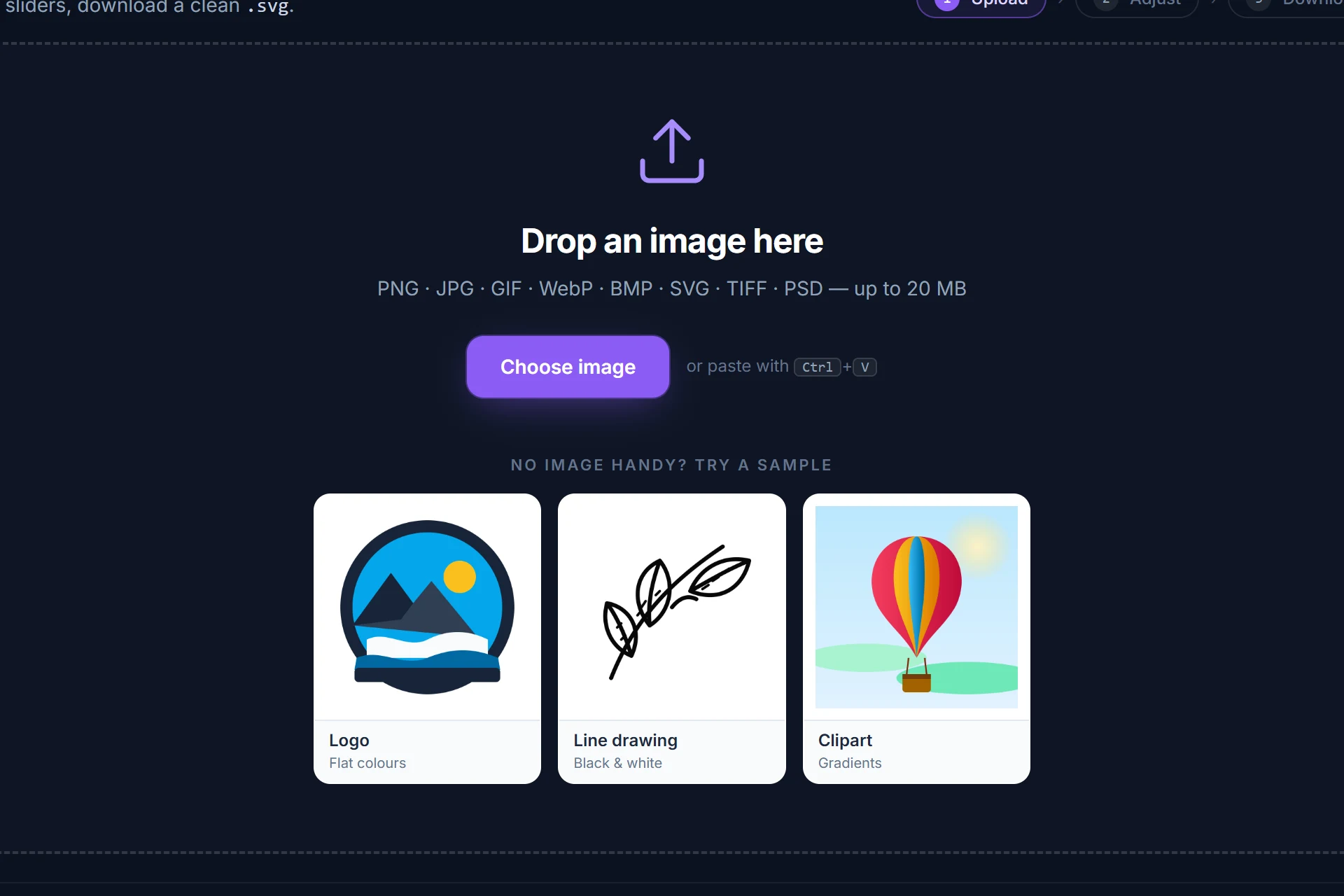
Drag it onto the page, pick it from disk or paste it with Ctrl+V. It is analysed and traced immediately — colour or black-and-white, colour count and threshold are detected for you.
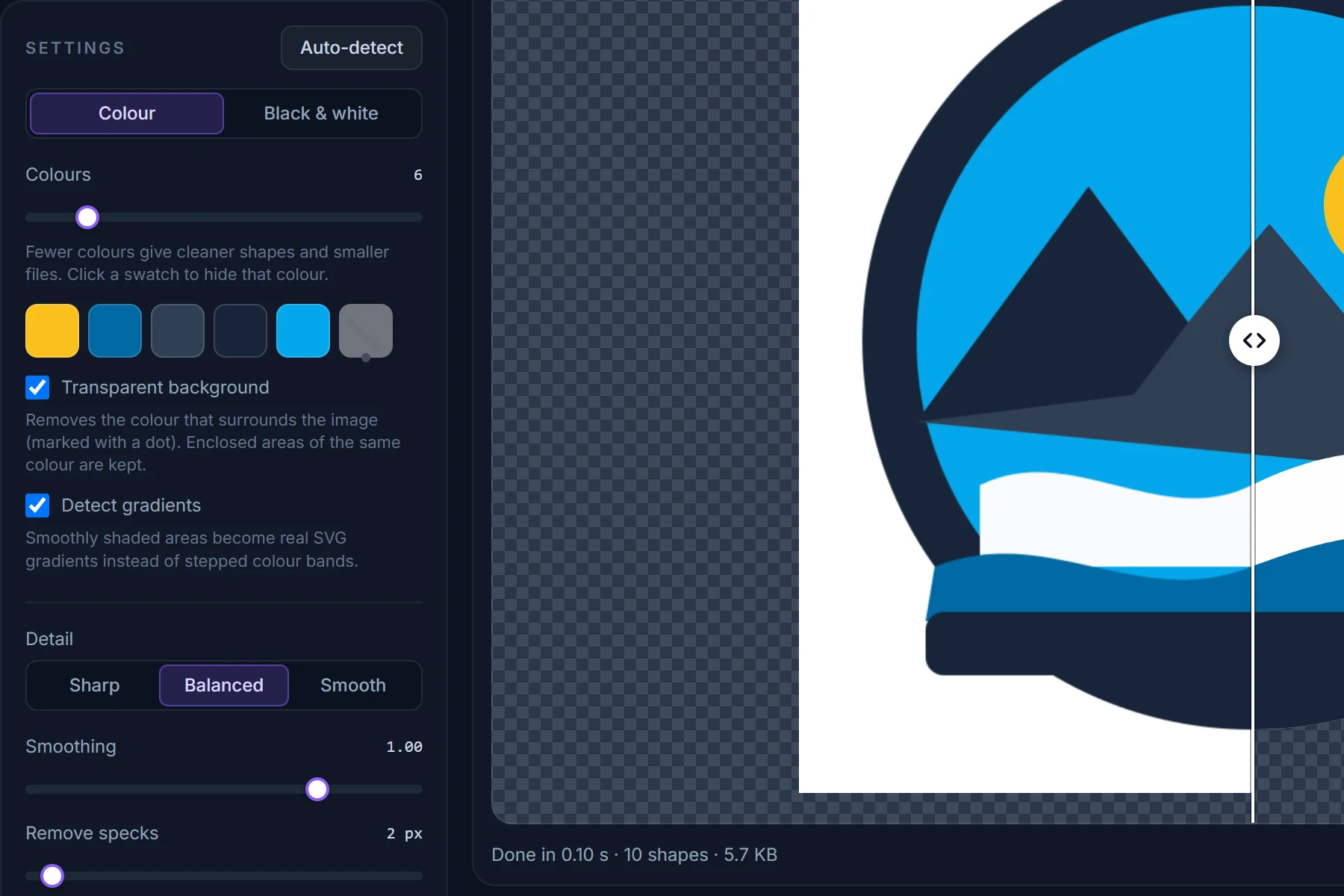
Drag the divider between original and SVG, zoom into an edge. Change the number of colours, hide a colour, make the background transparent; every change re-traces in a fraction of a second.
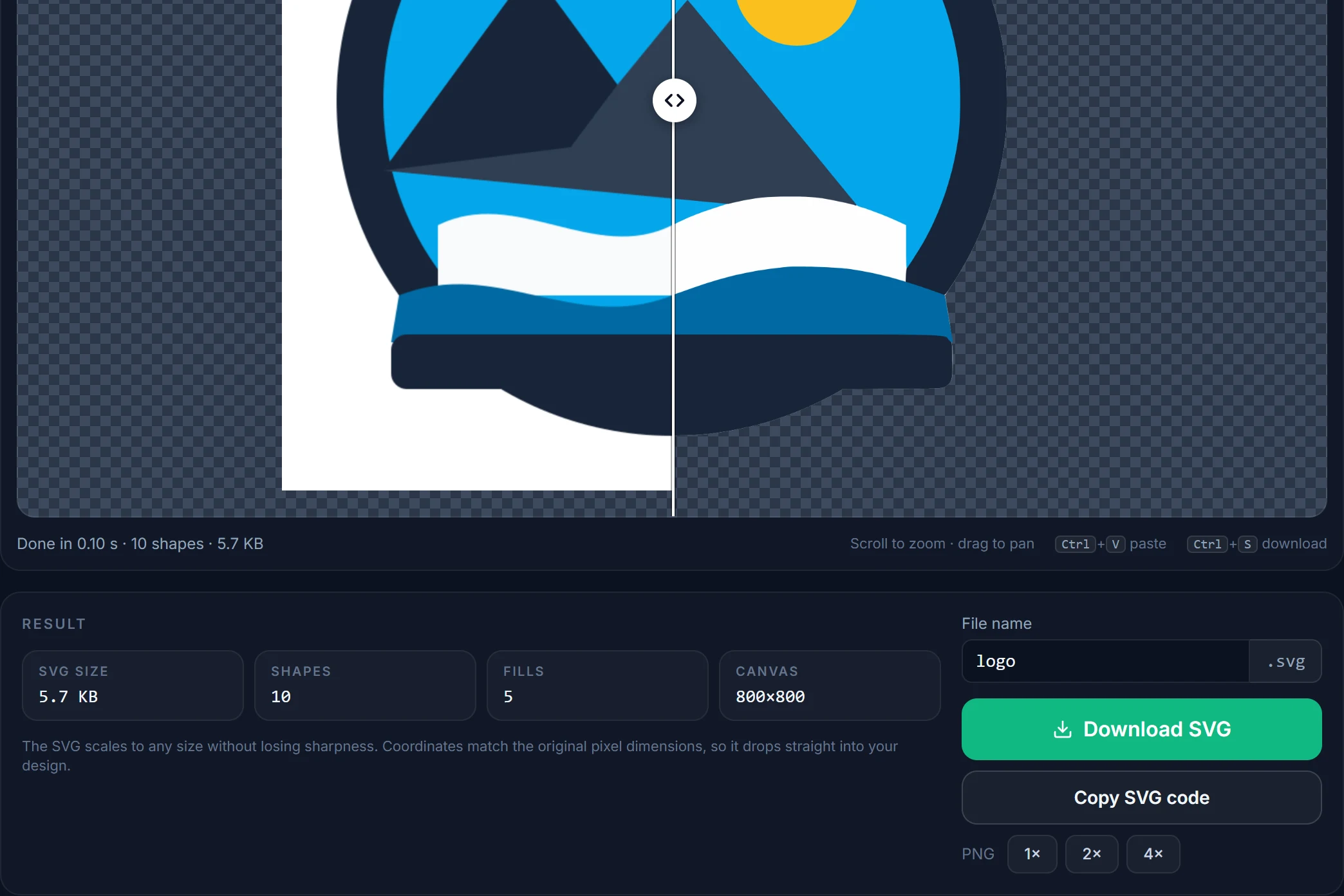
Save the SVG, copy its code, or render a PNG at 2× or 4×. Coordinates match the original pixels, one path per fill, nothing else in the file.
Tips
Drop the .webp straight in. Converting to PNG first gains nothing and, for lossy WebP, re-encodes the artefacts.
Websites usually have a higher-resolution copy for high-DPI screens. A larger source gives smoother curves.
Tick Smooth noise first under Advanced and raise Remove specks a little if edges are bumpy at 400 %.
Auto-detect reads the colour count from the image; if compression added shades, set it to the number the design actually uses.
The first frame is used. To vectorize another frame, export it as PNG from an image editor first.
The preview background can be switched between checkerboard, white and dark so you can see exactly which areas are transparent.
Questions
Short answers here; the full FAQ covers formats, quality settings, photos and privacy.
Drop the WebP file on this page or open the converter and choose it. Your browser decodes it, the converter traces it within a second, and you download the SVG. No account, no upload, no watermark.
No. Every current browser decodes WebP natively, so the converter reads the file directly. Going through PNG only adds a step and, for lossy WebP, re-encodes the compression artefacts.
Yes. Transparent pixels are not traced, so the SVG is transparent in the same places. A solid background can be removed with the Transparent background checkbox.
The first frame is traced. For a different frame, export it from an image editor as PNG and convert that.
No. WebP, PNG, JPG, GIF and BMP files are decoded and traced entirely inside your browser; nothing is sent anywhere. See the privacy policy.
Yes, in browsers that decode AVIF (Chrome, Firefox, Safari 16 and later). The file is handled exactly like WebP.
More converters
Same engine, same privacy — one page per input format so you can bookmark the one you need.
Free, in your browser, nothing to install and nothing uploaded. The SVG is next to your original in about a second.