
 Logo
Logo Line drawing
 Clipart
Mind the 20 MB limit
A very large 24-bit BMP can exceed it. Save it as PNG first (lossless, much smaller) and convert that.
Drop a BMP and get a clean, scalable SVG in about a second. Uncompressed Windows bitmaps are the purest input a tracer can get — and the file never leaves your browser.
Drop your image here
BMP · also PNG, JPG, GIF, WebP, TIFF — up to 20 MB
Choose imageor paste with Ctrl+V
About BMP
No artefacts to clean up; the only drawback is file size.
BMP is the original Windows bitmap format: every pixel is stored uncompressed, so there is no JPEG noise, no palette limit and no colour drift. That makes BMP an ideal source for tracing — a logo, diagram or scan saved as BMP converts into an SVG with crisp edges and exactly the colours the file contains. The price is size: a 2000×2000 24-bit BMP is 12 MB, which is why the converter accepts files up to 20 MB and why the same image as PNG would be a fraction of that.
BMP files come from places that rarely produce anything else: Windows Paint, old scanner software, screenshot tools on legacy systems, embroidery and CNC programs, and exports from Office. The converter decodes them in your browser with the native decoder, so the pixels never leave your machine; the SVG is then computed by Potrace compiled to WebAssembly with the same pipeline as PNG to SVG: colour analysis, gradient detection, one <path> per fill, original pixel coordinates.
Transparency
The background colour becomes see-through with one tick.
Practically all BMPs are opaque (32-bit BMPs with an alpha channel exist but are rare, and most decoders ignore the alpha), so a logo saved as BMP always sits on a solid background. Tick Transparent background and the colour touching the image border is removed from the SVG; enclosed areas of the same colour inside the artwork — the counter of a letter, a white highlight — stay where they are. Any other colour can be hidden by clicking its swatch.
Because BMP edges are typically hard (Paint does not anti-alias), the outline of a shape is a staircase of pixels. Potrace turns that into smooth Bézier curves; the Smoothing slider decides how round the corners get, and the Sharp detail preset keeps them tight when the source is a technical drawing.
Scans and drawings
Line drawings, signatures, stamps and CAD exports become a single path.
A large share of BMP files are scans: a hand-drawn logo, a signature, a stamp, a floor plan. For these, switch to Black & white mode (auto-detect usually picks it for you). The converter computes an Otsu threshold that separates ink from paper, traces everything darker than it as one path with a transparent background, and lets you move the threshold until thin lines are solid but paper texture and shadows are gone. Remove specks (in source pixels) drops dust and grain; Invert handles light drawings on a dark background.
The resulting SVG is a single filled shape per connected region — ideal for laser cutters, vinyl plotters, embroidery digitising and CAD import. Note that thin lines become long, thin filled polygons rather than centreline strokes; pen plotters that need a single stroke path require a centreline tracer instead.
How it works
Three steps, and the second one is optional. No palette wizard, no model selection, no credit counter.
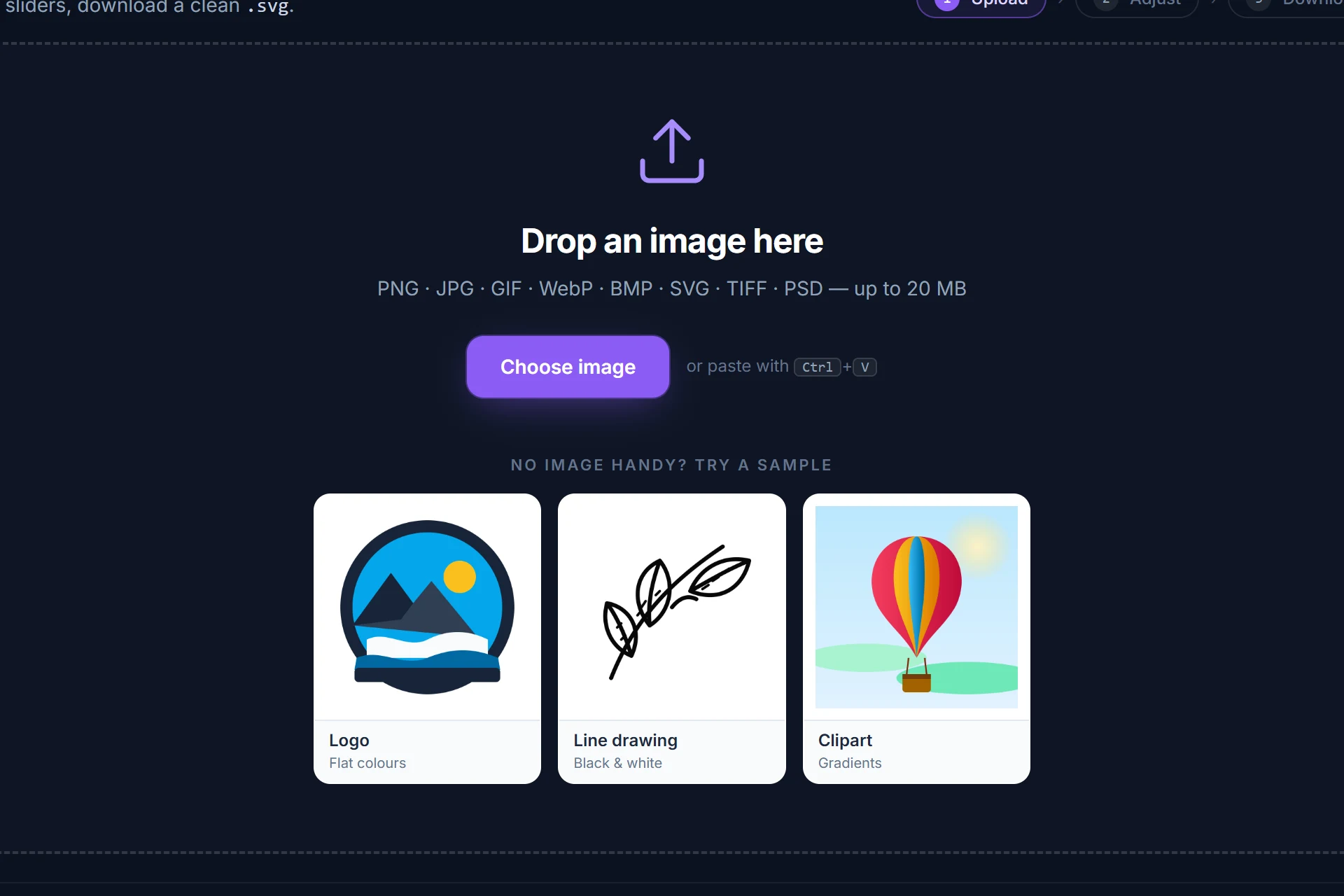
Drag it onto the page, pick it from disk or paste it with Ctrl+V. It is analysed and traced immediately — colour or black-and-white, colour count and threshold are detected for you.
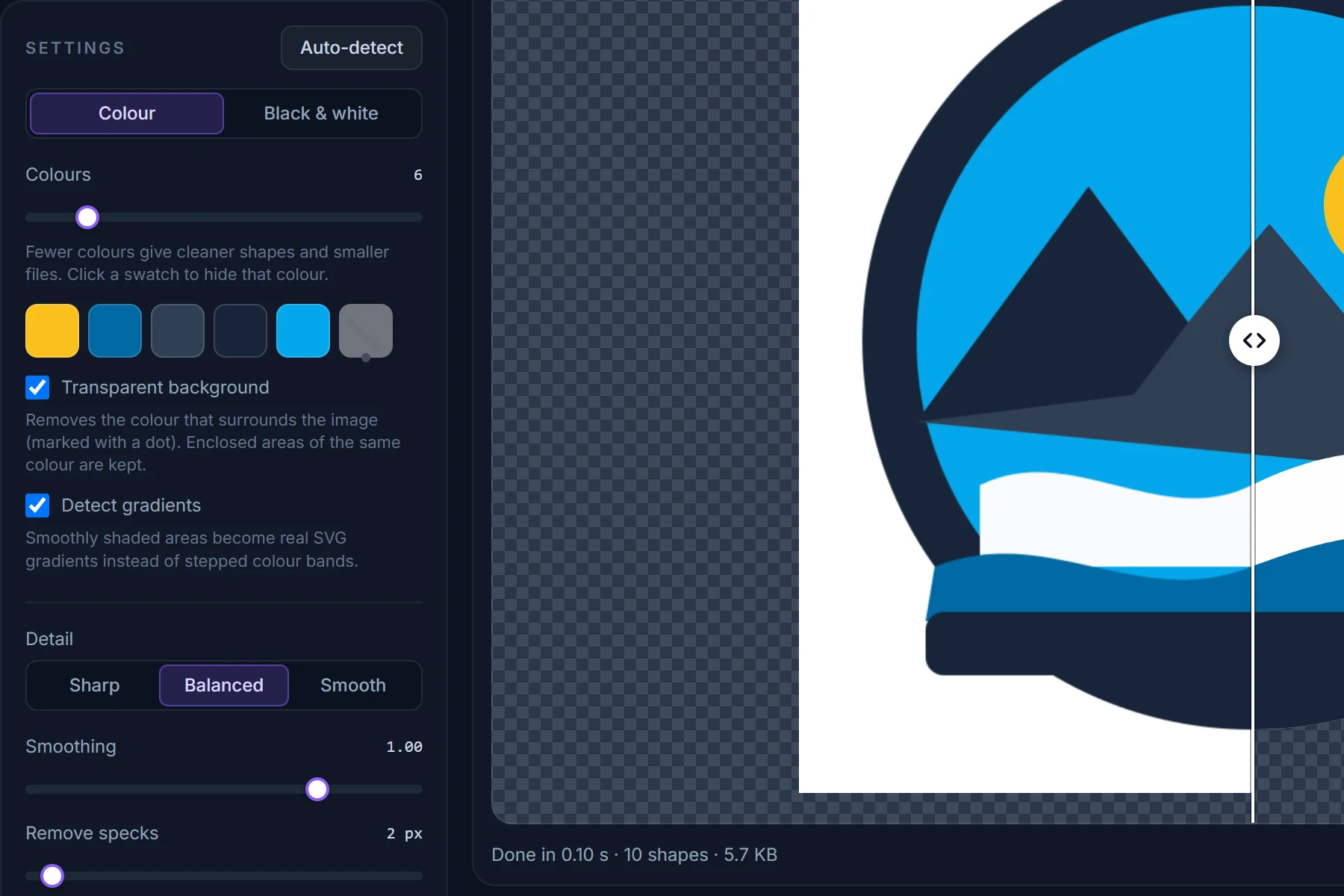
Drag the divider between original and SVG, zoom into an edge. Change the number of colours, hide a colour, make the background transparent; every change re-traces in a fraction of a second.
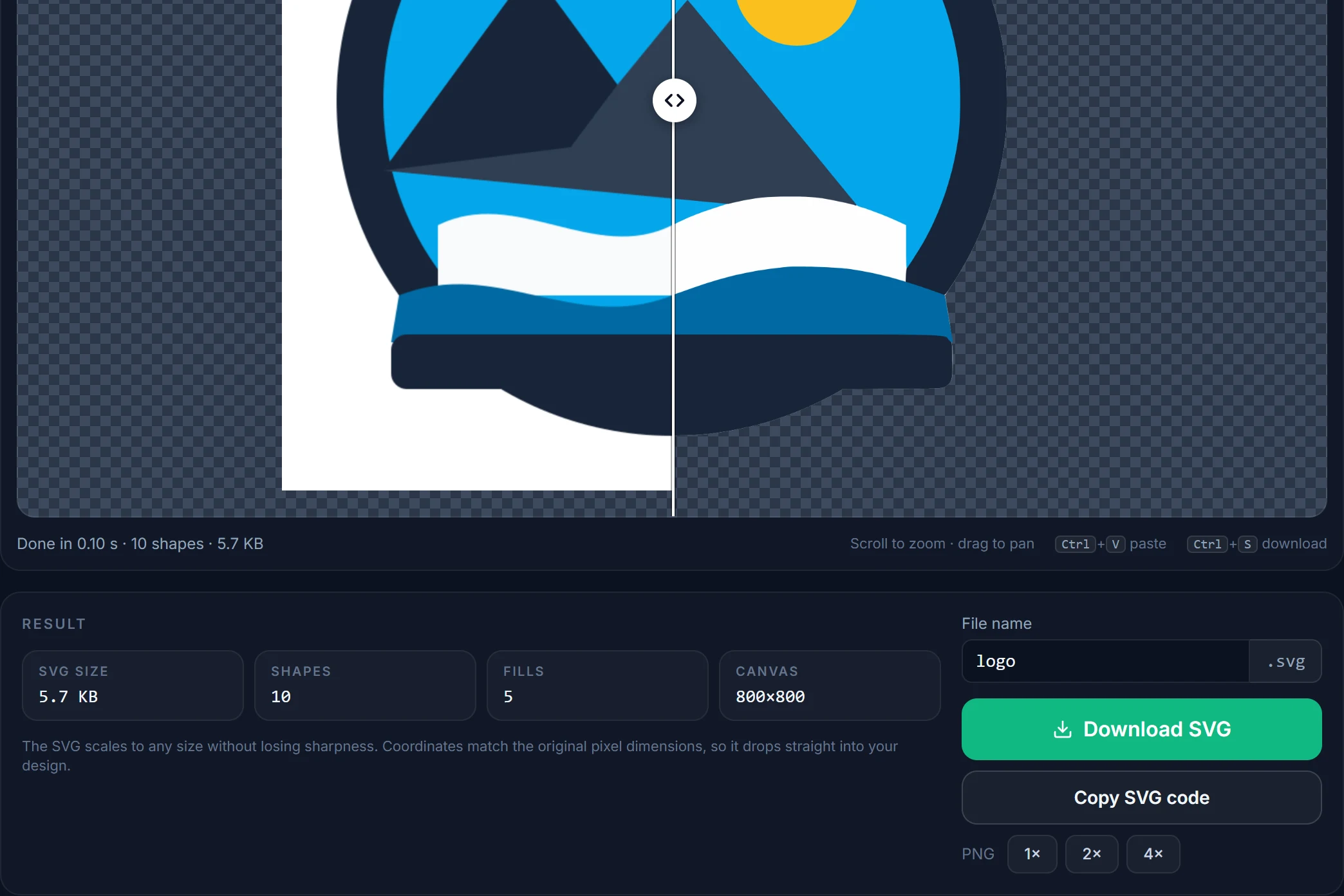
Save the SVG, copy its code, or render a PNG at 2× or 4×. Coordinates match the original pixels, one path per fill, nothing else in the file.
Tips
A very large 24-bit BMP can exceed it. Save it as PNG first (lossless, much smaller) and convert that.
Move the threshold until the lines are solid; raise Remove specks to drop paper grain.
For diagrams and pixel-exact drawings use the Sharp detail preset and a low Smoothing so corners stay corners.
BMP cannot be transparent, so the white around a logo is a real colour until you remove it.
A rotated scan traces fine but gives tilted shapes; rotate it in any image editor before converting.
A BMP screenshot of an icon or logo works, but look for the original image first — it is usually larger.
Questions
Short answers here; the full FAQ covers formats, quality settings, photos and privacy.
Drop the BMP on this page or open the converter and choose the file. It is decoded and traced in your browser within a second; check the preview and click Download SVG. No account, no upload, no watermark.
A bitmap (BMP, PNG, JPG…) stores a fixed grid of pixels and blurs when enlarged. A vector (SVG) stores shapes as curves and stays sharp at any size. Converting BMP to SVG rebuilds those shapes from the pixels — see the raster vs. vector guide.
No. BMP, PNG, JPG, GIF and WebP files are decoded and traced entirely inside your browser. Only TIFF, PSD, HEIC and PDF — formats browsers cannot open — are converted to PNG on our server in memory and discarded at once.
Yes. BMP has no transparency of its own, but ticking Transparent background removes the colour touching the image border from the SVG while keeping enclosed areas of the same colour.
Open it in any image editor (Paint works) and save it as PNG. PNG is lossless, so nothing is lost, and the file will be many times smaller.
Yes — they are the ideal black-and-white source. Auto-detect switches to B&W mode and the result is a single clean path.
More converters
Same engine, same privacy — one page per input format so you can bookmark the one you need.
Free, in your browser, nothing to install and nothing uploaded. The SVG is next to your original in about a second.