
Reference · 7 min read
Raster vs. vector: what image tracing can and cannot do
A bitmap is a grid of coloured dots. A vector is a list of shapes. Tracing is the art of guessing the shapes from the dots — which works beautifully for some images and only approximately for others. Here is why.
01 · Two kinds of image
Dots versus shapes
Same picture, two completely different descriptions.
A raster (or bitmap) image — PNG, JPG, GIF, WebP, BMP, a photo, a screenshot — is a rectangle of pixels, each one a colour. A 1000 × 1000 logo is a million numbers. There are no circles or letters in the file, only dots that happen to look like circles and letters at that size. Scale it up and the dots get bigger; the renderer can blur between them, but it cannot know where the edge was supposed to be.
A vector image — SVG, EPS, PDF, AI — stores the shapes themselves: "a circle of radius 40 at (100, 100), filled blue", or, more generally, a path of straight lines and Bézier curves. There is no resolution. A vector logo renders identically as a 16-pixel favicon and on a 10-metre banner, and a logo that is 200 KB as a PNG is often 5 KB as an SVG.
| Raster (PNG, JPG…) | Vector (SVG…) | |
|---|---|---|
| Made of | A grid of pixels | Lines, curves and fills |
| Scaling up | Blurs or pixelates | Stays sharp at any size |
| Best for | Photos, textures, screenshots | Logos, icons, type, diagrams, cut files |
| Editing | Pixel by pixel | Move a point, change a fill |
| File size | Grows with resolution | Grows with complexity |
Comparing two specific formats? The PNG vs SVG guide covers file size, browser support and when to pick each one.
02 · How tracing works
From pixels back to shapes
Tracing (vectorising) reverses the process. AnyToSVG does it in five passes, all on your machine:
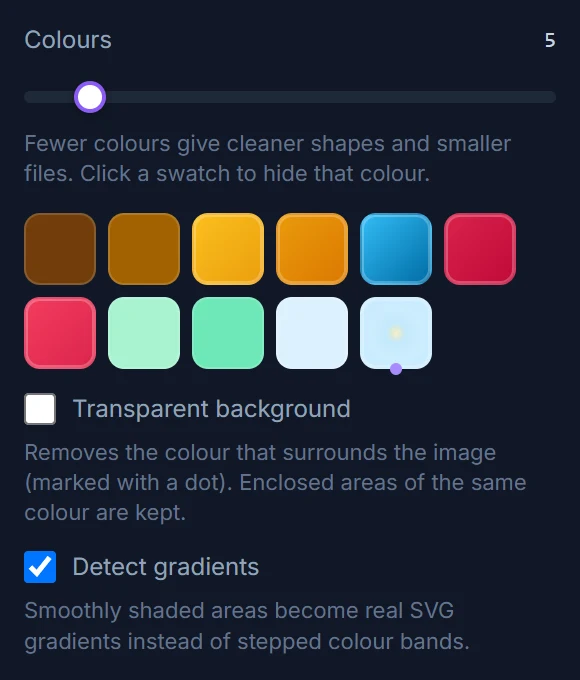
- Find the smoothly shaded regions. Pixels that differ only slightly from all their neighbours are grouped into regions; each large region is fitted with a linear or radial colour model, and if the model explains it well the region becomes one shape with an SVG gradient fill.
- Group the remaining pixels by colour. The dominant colours become a palette of 2 to 32 entries and every pixel is assigned to its nearest one. Anti-aliased edge pixels, which are blends, are cleaned up so they do not become their own thin colour.
- Make one mask per fill — a black-and-white image of "where this colour (or gradient) is".
- Trace each mask with Potrace, which walks the boundary of every blob, decides which corners are real corners, and fits smooth Bézier curves to the rest.
- Stack the paths from the largest area up into an SVG, one
<path>per fill.
Notice what the algorithm never does: it does not recognise a letter "A" or a face. It sees blobs, boundaries and smooth ramps of colour. That is why it is excellent at one class of images and merely acceptable at another.
03 · Transition colours
Where shading goes: gradients, not bands
The step most tracers skip, and the reason their skies come out striped.
A tracer that starts by reducing the image to flat colours has already lost every soft transition. A sky, a highlight on a sphere, the shading on a balloon stripe — each becomes a staircase of two, four or eight flat bands with hard edges between them, and the more colours you allow, the more bands and the bigger the file.
AnyToSVG runs one extra pass before the colour quantisation. Pixels that differ only slightly from all four of their neighbours are grouped into smooth regions (anti-aliased edges act as walls, so a region never leaks into the shape next to it). Every large region is then fitted with a colour model: a linear one (a direction of change and colour stops along it) or a radial one (a centre and stops by distance). If the model explains the pixels closely, the whole region is traced as a single shape and filled with a real <linearGradient> or <radialGradient>. Shading that bends around a curve — which no single one-dimensional gradient can follow — is split into a few pieces, each with its own gradient, along seams where the neighbouring models agree.
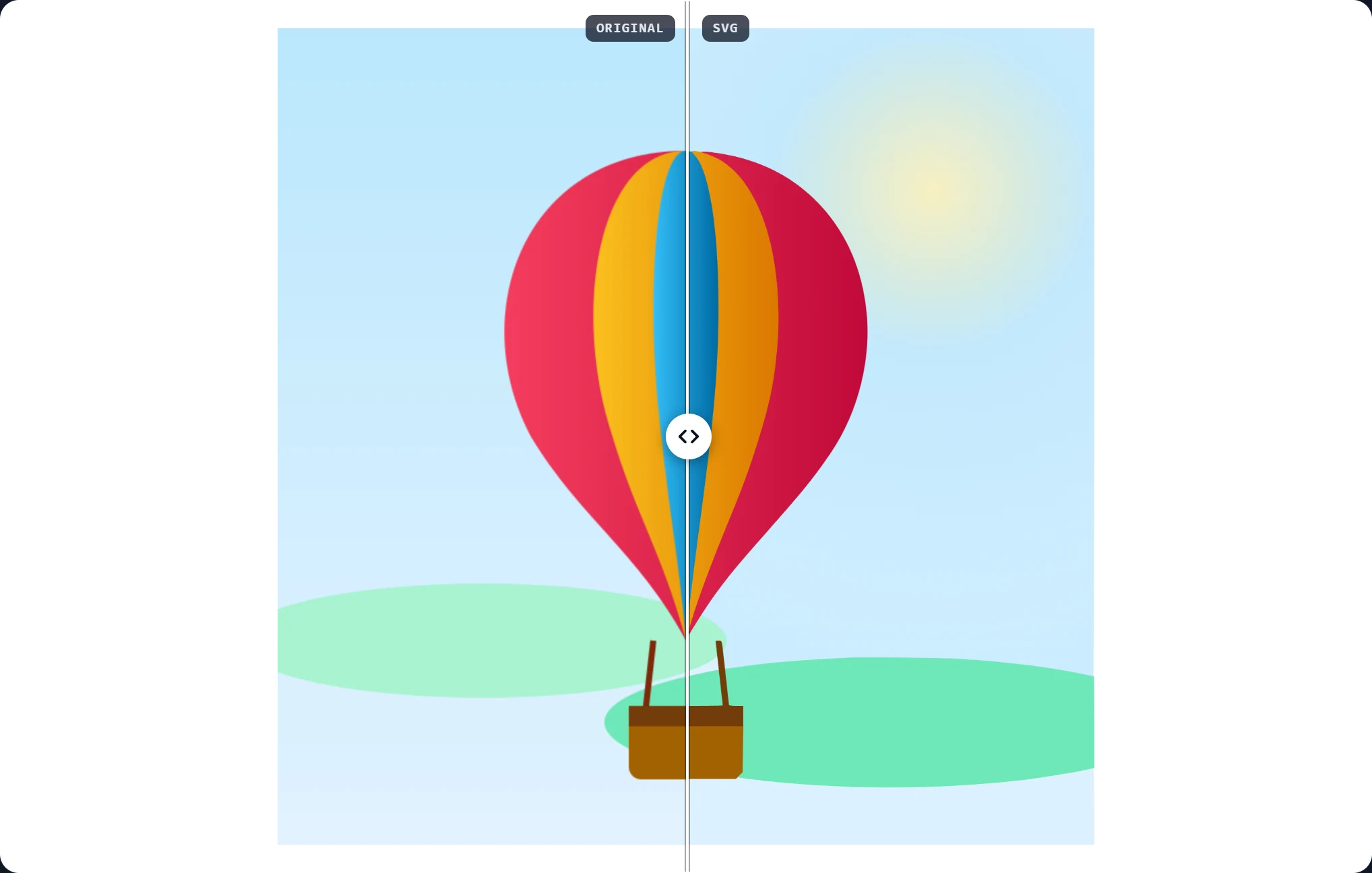


What still becomes bands: shading that follows a complicated shape, several overlapping soft shadows, or photographic texture. Those regions fail the model test and fall back to flat colours, where the colour count slider takes over.
04 · Traces beautifully
Images made of flat shapes
- Logos and wordmarks — the classic case. A few colours, crisp edges: the SVG is practically the original artwork.
- Icons and clipart with solid fills.
- Line drawings, sketches, signatures, stamps in black-and-white mode: one path, a few kilobytes.
- Lettering and calligraphy — the curves come out smooth; only very small type may merge.
- Silhouettes, stencils and cut files for vinyl cutters and laser cutters.
- Maps, diagrams, flowcharts with flat colours (text will be shapes, not editable type).
05 · Traces approximately
Images made of tones
- Photographs become posters: 8–32 flat colours with hard edges between them. Striking as an illustration or a screen-print separation; useless as an "upscale".
- Complex shading — several overlapping soft shadows, or a gradient that wraps around an intricate shape — is only partly captured: what fits a linear or radial gradient (or a few pieces of them) becomes one, the rest turns into flat bands. Skies, highlights, shaded stripes and spheres come through intact, as shown above.
- Heavily compressed JPGs carry block noise that the tracer faithfully outlines. Smooth noise first and a higher speck size help; a better source helps more.
- Tiny images (under 200 px) have too few pixels to define a curve; corners come out rounded and details merge.
- Text you need to edit — the letters will be perfect shapes, but not a font. Retype it in your editor using the trace as a guide.
06 · Trace or redraw?
A quick decision rule
Tracing copies what is there. Redrawing makes what should be there.
Trace when the bitmap is a faithful rendering of a design that was flat to begin with — you are recovering a vector that once existed. Ten seconds, done.
Trace, then tidy when the source is a bit rough: a logo from a website at 300 px, a scanned signature, a photographed sketch. The trace gives you 90 % and a vector editor gives you the rest — deleting a stray shape, straightening a line, snapping a corner.
Redraw when the bitmap is a photo of the thing rather than the thing: a logo on a shop sign, a business card under a lamp, an embroidered patch. There the pixels contain perspective, lighting and texture that no tracer should reproduce, and the trace is best used as a template underneath your own drawing.
In all three cases the preview tells you which one you are in before you download anything — which is rather the point of having it.
Keep reading
More on vectors
Try it as you read
The converter is free, needs no account, and shows the SVG next to your original in about a second.